
Changing PNG existing color in palette to a different color

Hi All,

I have read and tried the following for Fighter Factory:

Tutorial - Palettes, The Easy Way
https://www.chronocrash.com/forum/resources/advanced-palette-tool-tutorial.343/

Now with that said, I've read them both but I'm not 100% sure I understand all the steps, so I did some guessing-and-testing.

What I'm trying to achieve:
  • I have a PNG image of a sprite, which is lacking a color that I need - green in this case (0,255,0).
  • I want to add or replace a unused color in the palette to this new value of green (0,255,0)
Steps I've taken in Fighter Factory:
  1. Add a Sprite (the sprite that I am trying to change the color palette of), looks like this:
  2. 1740907451143.png
  3. The purple (1st row, 2nd column in the palette) is what I want to change to Green (0,255,0).
  4. I double click on the purple color and the color dialog pops-up and I change the RGB values to (0,255,0)
  5. I can see the sprite instantly updated, as well as the palette is updated:
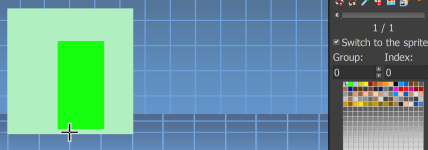
  6. 1740907551753.png
  7. I also click "Apply the current palette to the specified sprites" - for good measure.
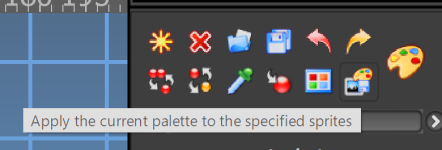
  8. 1740907613145.png
  9. I click "Save one or more sprites as image files" and name the PNG file.

  10. 1740907660951.png
  11. I then load it up on OpenBOR to see my results/failure:
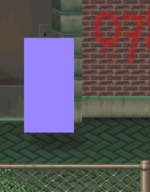
  12. 1740907858937.png
  13. If I reload the updated "Green" sprite back into Fighter Factory, it shows me that the color is indeed Green and the palette is the updated one (see step 5 above) - so this leads me to believe the palette was saved and the image itself is indeed Green (I've also check via opening up the image in GIMP, Libresprite, paint, etc.)
I've also tried going into the "Advanced Palette Editor" and doing similar steps in there but the result is the same.

Can I please get some advice as to what I might be doing wrong / missed steps?

Thank you.
 
Can I please get some advice as to what I might be doing wrong / missed steps?
There is probably some confusion in your process. Let's take it one step at a time.

1- You are editing the palette within the SFF editor, and although it works for OpenBOR if you save it correctly, I suggest you use the palette editor (Tools > advanced palette editor)

2- Are you sure you are calling the correct file in OpenBOR? It is not enough to edit a color in an image, you need this image to be the one you use as the palette

3- Are you using ALTERNATEPAL or REMAP?
 
There is probably some confusion in your process. Let's take it one step at a time.

1- You are editing the palette within the SFF editor, and although it works for OpenBOR if you save it correctly, I suggest you use the palette editor (Tools > advanced palette editor)

2- Are you sure you are calling the correct file in OpenBOR? It is not enough to edit a color in an image, you need this image to be the one you use as the palette

3- Are you using ALTERNATEPAL or REMAP?
I tried REMAP. Wasn't aware / missed the ALTERNATEPAL (?).

I'll detail out the steps I tried in the advanced editor later today. Is there a write up for the proper steps - the two tutorials didn't appear to cover this specifically, tho I might be dense.
 
Welcome to the community @VirtusVerbis. Allow me to iterate the steps for using remap:
  1. Don't.
  2. Stop it.
  3. Forget it.
Seriously. Remap is an archaic legacy command you should never, ever touch. It is absolutely pointless except in a couple of extremely edge cases and only exists for backward compatibility.

See here for more on palettes:


DC
 
Welcome to the community @VirtusVerbis. Allow me to iterate the steps for using remap:
  1. Don't.
  2. Stop it.
  3. Forget it.
Seriously. Remap is an archaic legacy command you should never, ever touch. it is absolutely pointless except in a couple of extremely edge cases and only exists for backward compatibility.

See here for more on palettes:


DC
I'm not using the REMAP command for OpenBOR, I thought Illusionista was talking about the "Remap" button inside of SFF.

DC thanks for referencing the wiki for Palette. I think I found something I missed / overlooked :

The default palette (palette 0) for model. Accepts an image, an .act palette file, or none (see below). If you omit this command, OpenBOR will assign a model palette from the first frame of the first animation.

Since my example above wasn't the first image in the animation that would explain why it's still using the palette from the first image in the animation.

I'll redo the animation cleanly so that it only uses that single image.

Thanks for pointing that out ! = )
 
Hi All,

I have read and tried the following for Fighter Factory:

Tutorial - Palettes, The Easy Way
https://www.chronocrash.com/forum/resources/advanced-palette-tool-tutorial.343/

Now with that said, I've read them both but I'm not 100% sure I understand all the steps, so I did some guessing-and-testing.

What I'm trying to achieve:
  • I have a PNG image of a sprite, which is lacking a color that I need - green in this case (0,255,0).
  • I want to add or replace a unused color in the palette to this new value of green (0,255,0)
Steps I've taken in Fighter Factory:
  1. Add a Sprite (the sprite that I am trying to change the color palette of), looks like this:
  2. View attachment 10240
  3. The purple (1st row, 2nd column in the palette) is what I want to change to Green (0,255,0).
  4. I double click on the purple color and the color dialog pops-up and I change the RGB values to (0,255,0)
  5. I can see the sprite instantly updated, as well as the palette is updated:
  6. View attachment 10241
  7. I also click "Apply the current palette to the specified sprites" - for good measure.
  8. View attachment 10242
  9. I click "Save one or more sprites as image files" and name the PNG file.
  10. View attachment 10243
  11. I then load it up on OpenBOR to see my results/failure:
  12. View attachment 10244
  13. If I reload the updated "Green" sprite back into Fighter Factory, it shows me that the color is indeed Green and the palette is the updated one (see step 5 above) - so this leads me to believe the palette was saved and the image itself is indeed Green (I've also check via opening up the image in GIMP, Libresprite, paint, etc.)
I've also tried going into the "Advanced Palette Editor" and doing similar steps in there but the result is the same.

Can I please get some advice as to what I might be doing wrong / missed steps?

Thank you.

Ok I can confirm the above steps I listed "do" work. The key is to ensure the first frame in the animation is using the full/updated palette (besides defining a master palette for the model/char - which is probably the better practice). I had other images preceding the test image above, hence OpenBOR does what it says it does and uses the first image as the palette (which didn't have the updated/added color that I was looking for).

Thanks to everyone that gave me insight above!
 
Slightly separate but related question.

I've been trying to add Alternate Palettes for a character.

In the example template I'm using, the following works fine for Kula (in the char model.txt):

remap data/chars/kula/walk009.gif data/chars/kula/alter.gif

But if comment it out and replace it with the following, then the char select screen no longer allows me to change the palette:

palette data/chars/kula/walk009.gif
alternatepal data/chars/kula/alter.gif

No errors are reported in the OpenBOR.log

Am I missing something?

Referencing:

C-like:
Palette
1
palette <path>
2
 
3
#default
4
palette <path to first frame>
The default palette (palette 0) for model. Accepts an image, an .act palette file, or none (see below). If you omit this command, OpenBOR will assign a model palette from the first frame of the first animation.

If none, there is no model level palette at all. Every sprite uses its own palette. Use this option carefully, as it increases memory use and disables any palette swapping for the model.

Alternate Palette
1
alternatepal <path>
2
 
3
#default
4
Not defined.
Loads an alternate palette. Use this command as many times as you like to add multiple color options for the model (palette 1, 2, …). Otherwise identical to Palette.
 
Last edited:
the char select screen no longer allows me to change the palette:

It's not that changing palette is disabled, it's more because of remap and alternatepal work differently. It's hard to explain in detail but the TLDR is remap images such as alter.gif for Kula is incompatible with alternatepal command. Try opening the palette of alter.gif the compare it with palette of other images Kula uses.
 
It's not that changing palette is disabled, it's more because of remap and alternatepal work differently. It's hard to explain in detail but the TLDR is remap images such as alter.gif for Kula is incompatible with alternatepal command. Try opening the palette of alter.gif the compare it with palette of other images Kula uses.
Okay sounds like I can't use alter.gif because the palette is different?

If I want to use alternatepal, how should I setup the palette to make it work?

I assume palette should be exactly the same for alter.gif and I simply use a different color index for the color change?

Any mod you know of that I can reference?
 
Okay sounds like I can't use alter.gif because the palette is different?

If I want to use alternatepal, how should I setup the palette to make it work?

I assume palette should be exactly the same for alter.gif and I simply use a different color index for the color change?

Any mod you know of that I can reference?

The video tutorial included here explains it step by step.


DC
 
Welp....after messing around with it for 4 hours I finally figured out what the culprit was.

The tutorial the @DCurrent provided was helpful, as the template confirmed that the commands for 'palette' and 'alternatepal' do work, and more specifically that I was using it correctly.

Turns out if you also apply frame scaling (because my hero sprite is a different scale) it causes the alternatepal to stop working. Once I removed my script below from the models.txt then alternatepal worked immediately.

In my models.txt header I had:

C:
script         data/scripts/framescale_hero.c


Inside of it I was calling:


C:
void main()
{
    //setdrawmethod(entity, int flag, int scalex, int scaley, int flipx, int flipy,
    //                int shiftx, int alpha, int colourmap, int fillcolour, int rotate, int rotateflip, int transparencybg)
    //scalex defines how the sprite will be stretch in x direction: sizex = original_sizex * scalex / 256
    //scaley defines how the sprite will be stretch in y direction: sizey = original_sizey * scaley / 256
 
 
    void self = getlocalvar("self");
    setdrawmethod(self, 1, 288, 288, 0, 0, 0, 0, 0, 0, 0, 0, 0);
   
}


Is there a way that I can get them both to work (ie: frame scaling + alternatepal) ?
 
Welp....after messing around with it for 4 hours I finally figured out what the culprit was.

The tutorial the @DCurrent provided was helpful, as the template confirmed that the commands for 'palette' and 'alternatepal' do work, and more specifically that I was using it correctly.

Turns out if you also apply frame scaling (because my hero sprite is a different scale) it causes the alternatepal to stop working. Once I removed my script below from the models.txt then alternatepal worked immediately.

In my models.txt header I had:

C:
script         data/scripts/framescale_hero.c


Inside of it I was calling:


C:
void main()
{
    //setdrawmethod(entity, int flag, int scalex, int scaley, int flipx, int flipy,
    //                int shiftx, int alpha, int colourmap, int fillcolour, int rotate, int rotateflip, int transparencybg)
    //scalex defines how the sprite will be stretch in x direction: sizex = original_sizex * scalex / 256
    //scaley defines how the sprite will be stretch in y direction: sizey = original_sizey * scaley / 256
 
 
    void self = getlocalvar("self");
    setdrawmethod(self, 1, 288, 288, 0, 0, 0, 0, 0, 0, 0, 0, 0);
  
}


Is there a way that I can get them both to work (ie: frame scaling + alternatepal) ?
Annnnnd the ANSWER = YES :

have to turn on :

  • colourmap(entity only) defines which colourmap will be used. 0 means no colourmap. -1 means the entity(if given) will use its current colourmap.
like so:


C:
void main()
{
    //setdrawmethod(entity, int flag, int scalex, int scaley, int flipx, int flipy,
    //                int shiftx, int alpha, int colourmap, int fillcolour, int rotate, int rotateflip, int transparencybg)
    //scalex defines how the sprite will be stretch in x direction: sizex = original_sizex * scalex / 256
    //scaley defines how the sprite will be stretch in y direction: sizey = original_sizey * scaley / 256
    
    
    void self = getlocalvar("self");
    setdrawmethod(self, 1, 288, 288, 0, 0, 0, 0, -1, 0, 0, 0, 0);
        
}
 
Turns out if you also apply frame scaling (because my hero sprite is a different scale) it causes the alternatepal to stop working. Once I removed my script below from the models.txt then alternatepal worked immediately.
Thats because drawmethod, used by script, takes precedence over native methods, such as alternatepal.
And this works for the most stuff.

plus, as you got it already, you have to use -1 on "crolourmap". I want to quote something @DCurrent said many times already (I can't remember the perfect sentence):
When you work with scripts, you have total control. And the word "total" is literal: the engine will only do what you tell it to.

An example of this is when you spawn a projectile: if you do this natively (with "knife", for example), the engine already fills in a series of things, such as "owner" and even if you set the candamage to PLAYER, it won't just hit another player.

But if you do this via script, without specifying who the owner is, as soon as you spawn your own project hits you. And why? Because the engine is only doing what you asked :)
 
Back
Top Bottom